Press Space. Take a gander.

Gander turns the Quick Look preview in Finder into a real viewer for the files developers open every day: Markdown with Mermaid diagrams, JSON, SQLite, .env files and 30+ more types. No editor, no switching apps.

Coming soon to the Mac App Store Watch the 29-second tour

For macOS 15 or later. Made by 65FN LLC.

  • .env.production Today at 09:14 601 bytes Environment File
  • api-requests.jsonl Today at 09:14 12 KB JSON Lines
  • architecture.mmd Today at 09:14 304 bytes Mermaid Diagram
  • branches.mmd Today at 09:14 234 bytes Mermaid Diagram
  • Cargo.toml Today at 09:14 301 bytes TOML
  • docker-compose.yml Today at 09:14 465 bytes YAML
  • forecast.json Today at 09:14 821 bytes JSON
  • forecast_service.py Today at 09:14 1 KB Python Script
  • nimbus-2.4.0.zip Today at 09:14 73 KB ZIP Archive
  • nimbus.sqlite Today at 09:14 53 KB SQLite Database
  • package.json Today at 09:14 511 bytes JSON
  • README.md Today at 09:14 1 KB Markdown Document
  • roadmap.mmd Today at 09:14 375 bytes Mermaid Diagram
  • theme.mid Today at 09:14 318 bytes MIDI Audio

Try it: click a file, then press Space.Try it: tap a file to preview it.

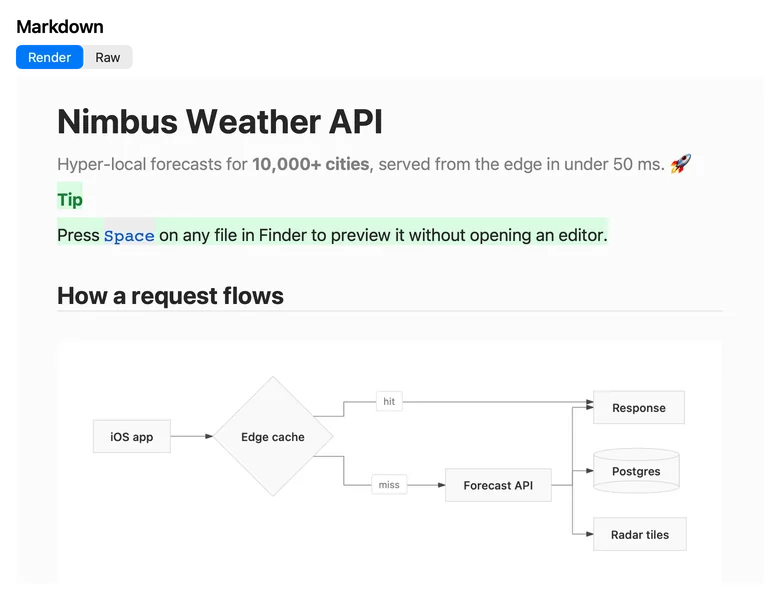
README.md rendered as Markdown: the Nimbus Weather API heading, a green Tip alert and the start of a Mermaid flowchart.

See it in 29 seconds

Every preview in the video is a real render from Gander’s Quick Look extension.

What the video shows
  1. A Finder window shows a sample project called nimbus, and README.md is selected.
  2. Space is pressed, and Quick Look opens README.md as rendered Markdown.
  3. The README scrolls past a Mermaid flowchart, a table and a task list.
  4. Mermaid files open as diagrams: a sequence diagram, a Gantt roadmap and a git graph.
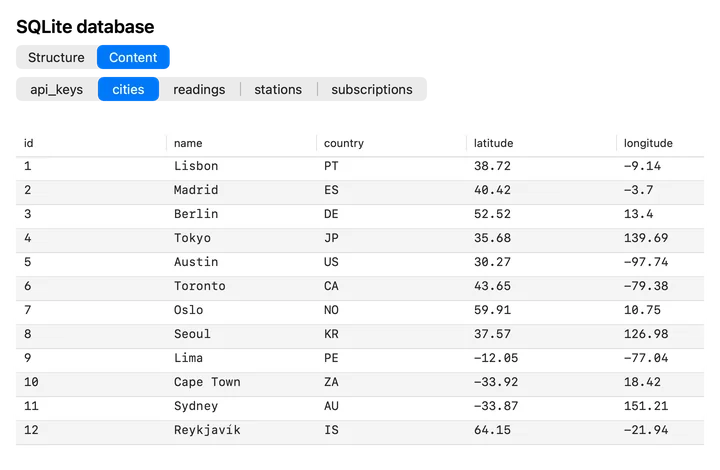
  5. nimbus.sqlite opens read-only: rows from two tables, then the Structure tab.
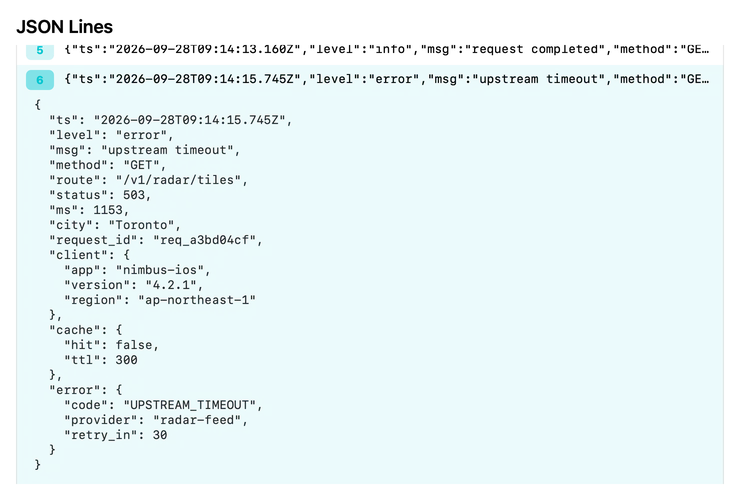
  6. A JSON Lines log shows one record per line, and one record expands as formatted JSON.
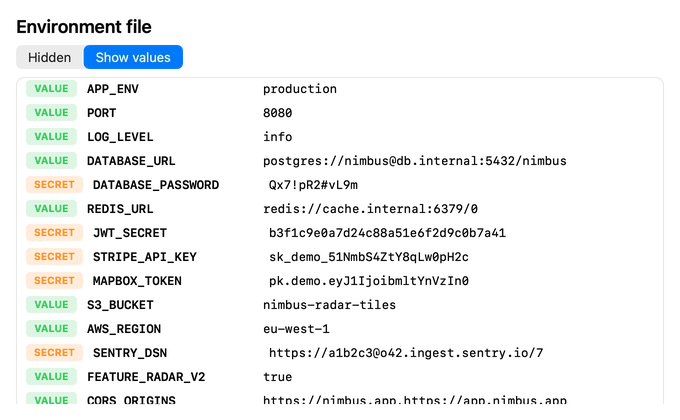
  7. A .env file opens with every value hidden, Show values reveals them, then they are hidden again.
  8. YAML, TOML, Python and a ZIP archive preview in turn.
  9. Closing title: “Press Space. Take a gander.”

A viewer for each file in your project

Gander gives each kind of file a preview built for it. Previews follow your Mac’s light or dark appearance, and every image on this page is a real render from the app.

Markdown, rendered the way GitHub shows it

README files open rendered, with the Raw source one click away. Everything in GitHub-flavoured Markdown works, plus the extras that usually need a browser.

  • Tables, task lists, strikethrough and autolinks
  • Math with $…$ and $$…$$, and footnotes
  • GitHub alerts: Note, Tip, Important, Warning and Caution
  • :emoji: shortcodes, and mermaid code blocks drawn as diagrams
README.md rendered: the Nimbus Weather API title, a Tip alert and a Mermaid flowchart of how a request flows.
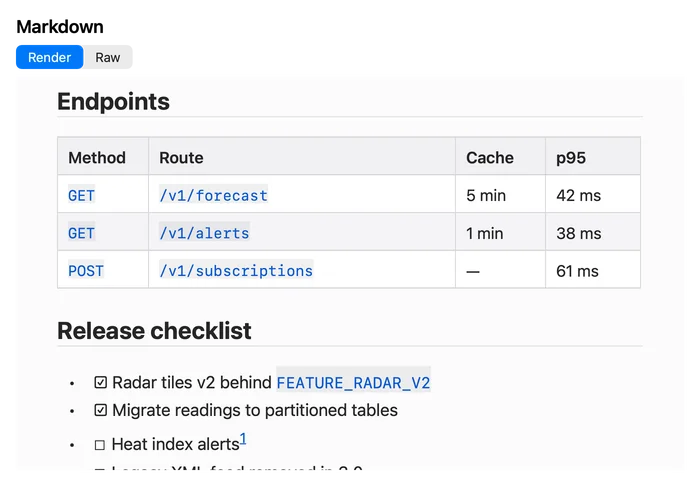
The same README scrolled to an Endpoints table and a Release checklist with ticked and unticked tasks.

Mermaid diagrams without a browser

.mmd and .mermaid files open as diagrams, with the source on the next tab. Gander draws flowcharts, sequence, class, state and ER diagrams, XY charts, pie charts, mindmaps, timelines, Gantt charts, user journeys, git graphs, quadrant charts, C4 and requirement diagrams.

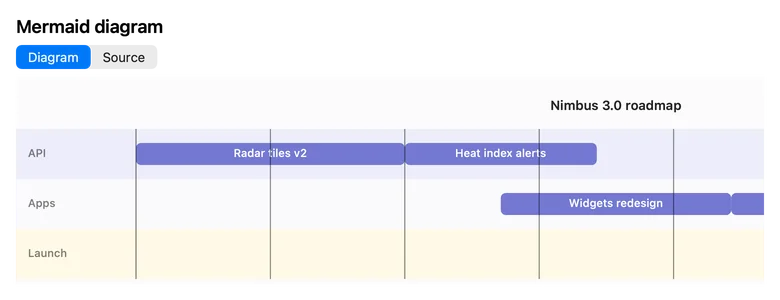
roadmap.mmd as a Gantt chart: the Nimbus 3.0 roadmap with bars for radar tiles and heat index alerts.
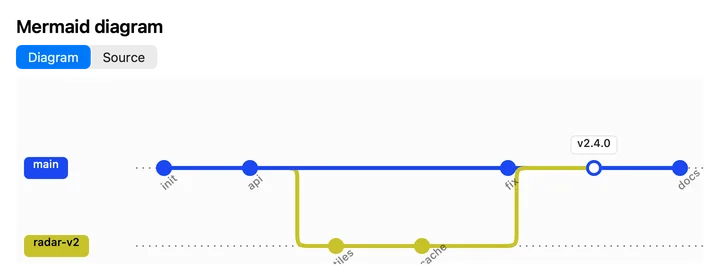
branches.mmd as a git graph with main and radar-v2 branches and a v2.4.0 tag.
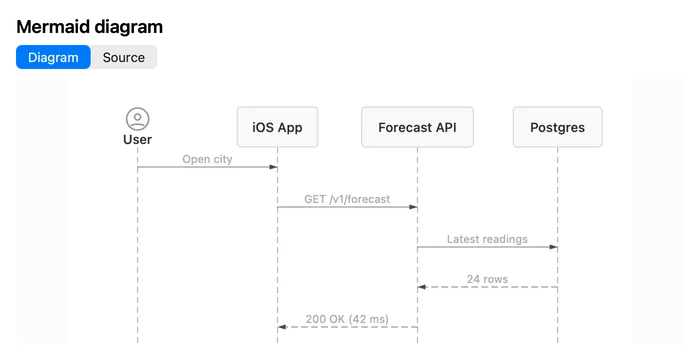
architecture.mmd as a sequence diagram: User, iOS App, Forecast API and Postgres exchanging requests.

JSON and JSON Lines you can actually read

JSON opens instantly, even large files, with Tree and Raw views. JSON Lines and NDJSON logs show one record per line. Click a line number to expand that record as indented JSON, in the file’s own key order, and click again to fold it.

forecast.json in the Tree view: city, country and the current conditions as nested keys.
api-requests.jsonl with record 6 expanded as indented JSON, showing an upstream timeout error.

Look inside SQLite databases

.sqlite, .sqlite3 and .db files open read-only, so the database is never modified and no journal files appear beside it. Structure lists every table’s columns, types, keys and indexes. Content shows the rows, table by table, up to the first 200 of each.

nimbus.sqlite on the Structure tab: the api_keys and cities tables with column types, primary keys and NOT NULL flags.
nimbus.sqlite on the Content tab: the cities table with 12 rows of names, countries, latitudes and longitudes.

Secrets stay hidden until you choose

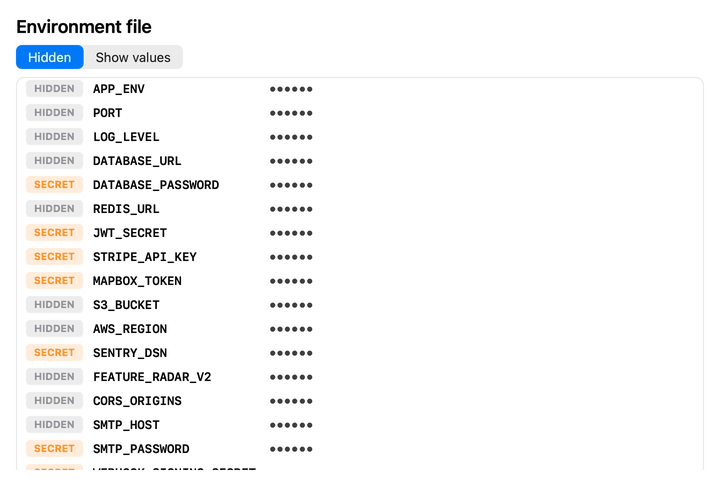
Environment files open with every value masked. Keys stay visible, and likely secrets such as passwords, tokens, API keys and private keys are marked SECRET. Values appear only when you choose Show values, and copying from the hidden view never copies a real value.

.env.production with Show values on: plain values such as the port and log level next to flagged secrets.
.env.production in the default Hidden view: every value masked, with keys like STRIPE_API_KEY marked SECRET.

Config, code, archives and the rest

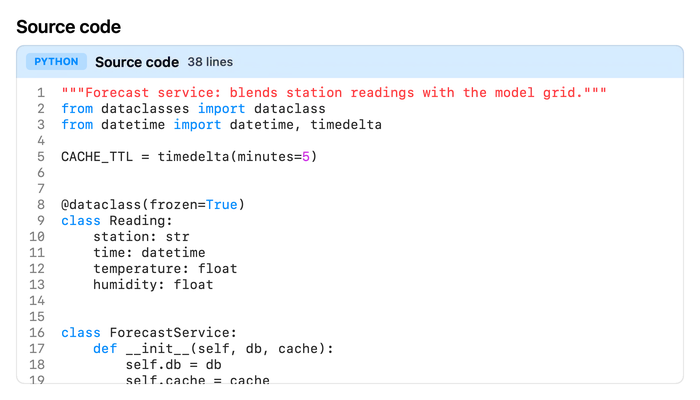
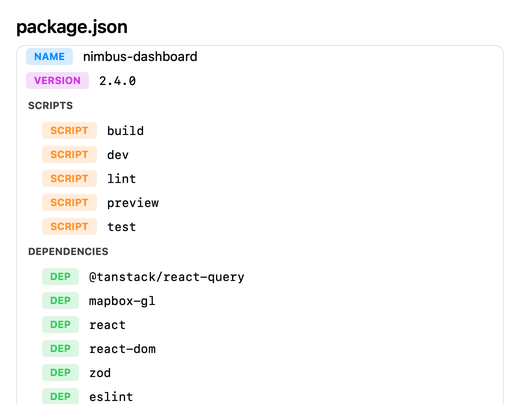
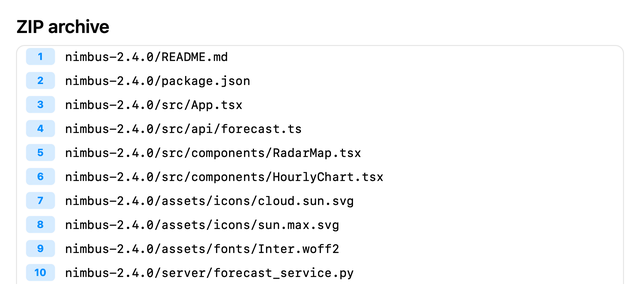
YAML, TOML, .cfg and .config files open as typed, colour-coded structures, and package.json gets an overview of its name, version, scripts and dependencies. Swift, Python, JavaScript and shell scripts are syntax-highlighted, and the line numbers stay out of anything you copy. ZIP, XIP, tar and .tar.gz archives list their contents without extracting, GZIP files show their text, and MIDI files play.

forecast_service.py with Python syntax highlighting and numbered lines.
package.json overview: the nimbus-dashboard name, version 2.4.0 and its scripts.
nimbus-2.4.0.zip listing the files inside the archive.

Real thumbnails in Finder

In icon, gallery and column view, Finder shows a page of the file itself: rendered Markdown, coloured JSON, YAML and code, Mermaid sources and archive contents. Thumbnails of .env files show keys only, never values.

  • Finder thumbnail of README.md drawn by GanderREADME.md
  • Finder thumbnail of forecast.json drawn by Ganderforecast.json
  • Finder thumbnail of architecture.mmd drawn by Ganderarchitecture.mmd
  • Finder thumbnail of docker-compose.yml drawn by Ganderdocker-compose.yml
  • Finder thumbnail of nimbus-2.4.0.zip drawn by Gandernimbus-2.4.0.zip
  • Finder thumbnail of forecast_service.py drawn by Ganderforecast_service.py
  • Finder thumbnail of package.json drawn by Ganderpackage.json
  • Finder thumbnail of Cargo.toml drawn by GanderCargo.toml

Nothing leaves your Mac

Gander reads the file you’re previewing and nothing else. It has no account, no analytics and no networking code, and its extensions run in Apple’s App Sandbox without network access. The App Store privacy label is Data Not Collected.

Read the privacy policy

  • Runs 100% on your Mac
  • No account, no subscription
  • Nothing is uploaded

Set up in under a minute

  1. Install Gander from the Mac App Store.

  2. Open Gander once. Its window shows whether Quick Look is using it, and lets you choose which file types and Markdown extras it handles.

  3. In Finder, select a file and press Space.

Still seeing the standard preview? Turn on Gander in System Settings › General › Login Items & Extensions › Quick Look. The Gander window has a button that opens that page.

Supported file types

Select any of these in Finder and press Space. The last column says whether Finder also shows a Gander thumbnail.

KindExtensionsWhat you seeFinder thumbnail
Markdown .md .markdown .mdown .markdn Rendered GitHub-flavoured Markdown with Mermaid, math, footnotes, alerts and emoji, plus the Raw source Yes
Mermaid .mmd .mermaid The diagram, plus the source Yes
JSON .json Tree and Raw views, fast even for large files Yes
JSON Lines .jsonl .ndjson One record per line; click a line number to expand it Yes
package.json package.json Name, version, scripts and dependencies Yes
YAML .yaml .yml A typed, colour-coded structure Yes
TOML .toml A typed, colour-coded structure Yes
Config files .cfg .config A typed, colour-coded structure Yes
SQLite .sqlite .sqlite3 .db Read-only Structure and Content tabs, up to 200 rows per table No
Environment files .env .env.* *.env Keys with values hidden until you choose Show values Yes, keys only
Source code .swift .py .js .mjs .cjs .sh .bash .zsh Swift, Python, JavaScript and shell with syntax highlighting and line numbers Yes
Plain text .txt .text .ini, dotfiles, files with no extension The text, read safely; binary files are left to macOS Yes
Archives .zip .xip .tar .tgz .tar.gz The list of files inside, without extracting Yes, except XIP
GZIP .gz .gzip The decompressed text, up to 32 KB No
Folders any folder The list of items inside No
MIDI .mid .midi .smf .kar Play, pause and scrub No

Questions and answers

What is Gander?

Gander is a Quick Look extension for macOS, made by 65FN LLC. When you select a file in Finder and press Space, Gander draws a rich preview for developer files such as Markdown, Mermaid diagrams, JSON, SQLite databases and .env files. It also draws Finder thumbnails for most of them.

Which Macs does Gander run on?

Any Mac with macOS 15 or later.

Does Gander upload or collect my files?

No. Gander has no networking code and collects no data. Previews are drawn on your Mac, and the App Store privacy label is Data Not Collected.

Does previewing an SQLite database change it?

No. Gander opens databases read-only and immutable, so it never writes to the file or creates -wal, -shm or journal files beside it. Rows that exist only in an uncommitted -wal file aren’t shown, and the preview says so.

Will Gander show the secrets in my .env files?

Only when you ask. Every value is hidden when the preview opens; keys stay visible, and likely secrets are marked SECRET. Choose Show values to reveal them. Finder thumbnails of .env files show keys only.

Can Gander draw Mermaid diagrams inside Markdown?

Yes. A fenced code block marked mermaid is drawn as a diagram inside the rendered page, and .mmd or .mermaid files open as diagrams on their own.

I pressed Space and still see the standard preview. What now?

Open Gander once, then go to System Settings › General › Login Items & Extensions › Quick Look and make sure Gander is turned on. If another app previews the same file type, turn that one off. Then select the file in Finder and press Space again.

Why don’t SQLite files get a Gander thumbnail?

macOS doesn’t let third-party thumbnail extensions handle SQLite files, so Finder keeps its own icon. Pressing Space still opens the full Gander preview.

Can I turn some previews off?

Yes. The Gander window has a switch for each file category and for each Markdown extra: math, footnotes, GitHub alerts and emoji. Switch a category off and Gander stops handling that type.

Why do images in my Markdown show as text?

Quick Look previews can’t load images, so Gander shows each image as a picture icon and its alt text.

Gander at a glance

Name
Gander (on the App Store: Gander: Quick Look Preview)
What it is
A Quick Look preview and Finder thumbnail extension for macOS
Developer
65FN LLC
Requires
macOS 15 or later
Where to get it
Mac App Store, coming soon
Privacy
Data Not Collected; no network access
Category
Developer Tools
File types
40 file extensions, plus dotfiles, extensionless files and folders
Version
1.0